
Sometimes, you may want to add more events or extend the activity dates within a container. This is helpful if:
-
A new club has been created
-
A previously blocked date is now available
-
A club needs to run on a different day
-
You want to extend certain activities for a few more weeks
This allows you to keep your schedule flexible without creating a new container.
To add more events, go into the relevant container, and follow the steps below:
- Click the 'Manage Events' tab
- Click 'Create Additional Events'
- Expand the filters to search and sort if you're looking for a specific group.
- Use the 'Select All' toggle button or individual check boxes to highlight the groups you'd like to add events to.
- Click 'Next'
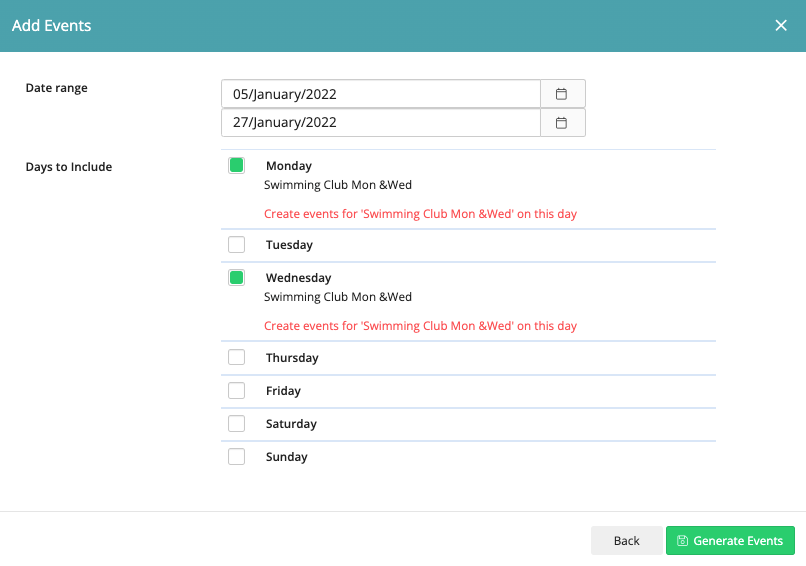
- Set the date range you'd like to add more events between
- Select the days you'd like to add events for.
- Click 'Generate Events'
- A warning message is displayed to confirm that events are being generated, and admins should wait a little while for the new events to be processed.
- You will then be able to see the registers in the students/parents/teachers' diaries, and teachers can start to take attendance.
Creating an additional event on a different day of a club
If you'd like to schedule an event on a day other than the club's regular meeting day, select the club and the date range, you will see the option to choose a different day (or days if there are linked days) that the club usually runs on.
To enhance the signup experience and ensure a smooth booking process, we recommend making activity selections using a desktop or laptop, as our app has limited space to show detailed instructions.