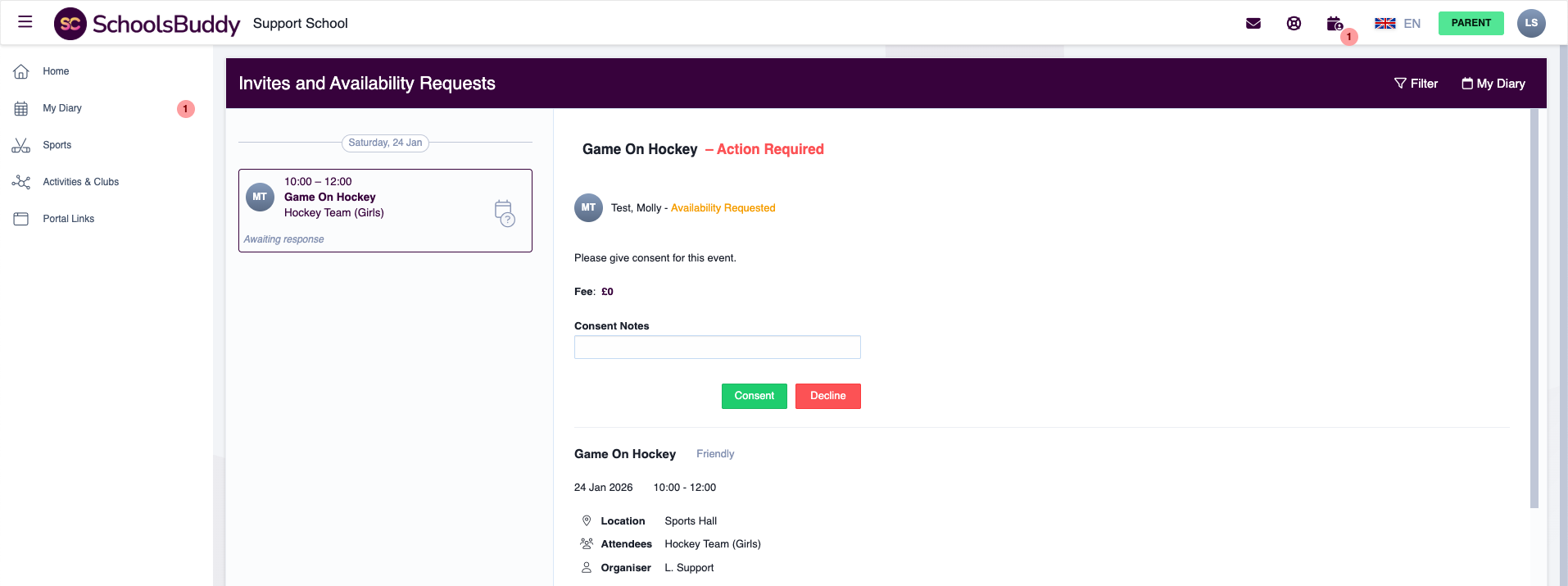
Parents get an email asking them to sign in, then see the invitation on their dashboard, where they give consent or availability for the trip or fixture.
When you create an event (such as a Trip or Sports event) that requires parent consent or availability, parents will receive an email notification asking them to log in to SchoolsBuddy.
Email sample:
Email sample.
Accessing the invitation
After logging in, parents can access the request in either of the following ways:
From the “Action Required” section on their dashboard
By clicking “Invites & Availability Requests” in the top-right corner of the screen
Both options will take parents to the same page.
Both options will take parents to the same page.
Viewing event details and responding
On the event page, parents can view full details, including:
Event name
Date and time
Location
Any additional notes or instructions added by the school
Parents can then choose to:
Give consent / confirm availability, or
Decline the invitation
Parents can also enter a message in the Consent Notes box. For example: “I can’t take my son to this fixture, can he travel on the minibus?”
This notes field is optional and can be left blank.
This notes field is optional and can be left blank.
What happens after consent is given
If the organiser has enabled automatic selection after consent, the event will be added to the student’s school diary immediately once consent is given.
If the organiser has enabled automatic selection after consent, the event will be added to the student’s school.
If the organiser has chosen to collect consent first and confirm selections later, the event will appear in the parent’s calendar as Pending selection until the organiser finalises participation.
If the organiser has chosen to collect consent first and confirm selections later, the event will appear in.
Confirmation
Once the student is confirmed for the event (either automatically or manually by the organiser), the parent will receive a confirmation email with the event details.
Once the student is confirmed for the event (either automatically or manually by the organiser), the parent will.