
This article explains how to create Online Parent Teacher meetings using Embedded Video. It also contains details of what the meeting looks like to parents and staff.
For Online meetings, you can now choose whether to use Meeting URL's or Embedded Video. Please read this article to choose what type of online meeting you will use.
To view how to create Onsite Parent Teacher meetings, please click here.
To view how to create Online Parent Teacher meetings using Meeting URL's, please click here.
Tip: It is easy to schedule multiple parents evenings in one container if you are using the same classes all year (or mostly the same). If you want to do this this method, you can change the sign up and meeting start & end dates throughout the year to show/hide the conferences to parents as you schedule the conferences each term.
-
Click the Activities & Clubs / Bookings Admin tab (this may be labelled differently due to your School's preferences)
-
Click the 'Parent Teacher Conference' container type
-
Click '+Add' to create a new container
- Complete the overall settings:
- Sign Up Title: Name of the Parents Evening(s) / Parent Conference(s)
- Information to Parents: Include details relevant to all PTC's to be displayed to parents. For example, who to contact if you cannot attend at the last minute/ whether parents can cancel appointments themselves.
- Allow booking cancellation: If you wish to allow parents to make cancellations/change their chosen time slots, select the box. Parents will see up to date availability of time slots.
- NB. Parents can only cancel/make changes during the time sign-up is open.
- Meeting Format: Select Online (via default online method)
-
Maximum meetings with a teacher per student: If you would like parents to book more than 1 meeting with a teacher change this to the number of meetings they can book.
- Fill in the rest of the details.
- Meetings start date: Date conferences will run from. You can enter dates for the whole year if you want to give a general guide to parents.
- Meetings end date: Date conferences will run to. You can enter dates for the whole year if you want to give a general guide to parents.
- Meetings default start time: If most of your PTC's start at the same time set this as the default.
- Meetings default end time: If most of your PTC's end at the same time set this as the default.
- Who can book meetings: Whether parents, students or both will make bookings
- Sign up opens: Date and time when sign up opens
- Sign up closes: Date and time when sign up closes
- Use Organisation Block Dates: Selecting this will prevent any PTC's being created on days that have been blocked for your organisation, for example teacher training days.
- Terms & Conditions: You can enter any Terms & Conditions for the parent to agree to before making a booking, or link to a page of your school's Terms and Conditions hosted on your website by entering this URL in the T & C's additional info (URL) box.
-
Booking Data Form: SchoolsBuddy can create custom data forms if you need to collect any information from parents at the time of booking.For example, translator requirements. Contact us with any requests.
When all details have been entered, select the green 'Save' tab.
- The container will be created and you will be taken to the home screen.
(Please note a container must not be re-used. A new container needs to be created for the next round of PTCs.)
Next, create the teacher groups for subject or registration classes. These can be imported from your Student Information System - contact us if they are not available already in the next step. -
To create an individual group click Add or to create all groups from the data imported from your Student Information System click Bulk Add.
-
If you have selected the Bulk Add option you can choose to generate groups from Subject Classes or Registration Groups. Select the desired option.
Subject classes are filterable by Teacher, Subject, Grade and keyword search:If you select Registration Groups, this will list all your registration groups or homerooms
-
Select the Reg Groups or Subject Classes you wish to add by clicking the toggle boxes or using Select all.
If you wish to see which pupils are in the Reg Group or Subject Class, click the green (i) logo located next to the name.
-
Choose a Teacher title suffix. For example, if you select Registration Groups, the group title suffix will be applied e.g. 10A Parent Teacher Conference, 10B Parent Teacher Conference. This is what a parent will see when they choose the teachers they want to book.
-
When the classes/registration groups have been selected, click the Generate Teachers button.
12. A list of the newly created teacher groups will appear. You can delete or edit these. If you wish to delete a teacher or teachers, check the box on the left for the appropriate teacher(s) and then click Delete selected.
When you are happy with the teachers, check the individual boxes on the left or click Select All and then click Complete. You will see that the Online Location displays Embedded video chat to signify that the meeting will be using embedded video in SchoolsBuddy rather than a Meeting URL.
13. Newly created groups will appear under the Teachers tab within the container.
If you see a warning message indicating that more than one group is linked to the same teacher, please take extra care when scheduling meetings. Make sure meetings for these groups are not scheduled at the same time, as this would result in overlapping bookings.
We recommend deleting any that aren't needed and moving their classes over - please read this article to find out how to do this. This means combining multiple classes into one group’s 'Available to' field. For example, if a teacher is offering meetings to both an English class and a French class, you can include both classes in the 'Available to' section of a single group, rather than creating separate groups for each class.
Please note that in some cases, having duplicated teacher groups is expected and appropriate. This usually applies when a teacher’s meetings need to be scheduled at different times for different roles. For example, a teacher may be meeting one group of students as their English teacher and another group as a CAS coordinator.
In these situations, it’s important to ensure the teacher’s time slots are scheduled or blocked out correctly to avoid double bookings — for example, scheduling English meetings in the morning and CAS meetings in the afternoon.
Note: The Group filter shown in the screenshot below is not a search function. It filters results by group name only. If the teacher’s name is also used as the group name, it may appear as though the filter is searching by teacher name.
14. If you wish to edit any details, click Edit and amend any details manually as required.
You could edit the availability to allow students from other subject classes to have appointments with this teacher if they had to substitute for another teacher for example.
15. Click Block Dates to view any dates that PTCs will not be scheduled on. If you have selected to use the Organisation block dates, these will appear here. You can also add more block dates that only apply to these PTCs rather than to the all school activities if necessary.
16. Next, click Create Events and Add New.
17. Fill in the information:
- Title: Title of the specific Parents' Evening / Parent Conference.
- Vital Information: Add any relevant vital information.
- Bookings per meeting slot: Usually one parent can book a slot at a time but this will depend on your school's preferences. For example, if you are holding student led conferences with two students in attendance at the same time.
18. If you wish to create the conference for every teacher / registration/subject class, click Select All in Create for Teachers. Alternatively you can select individual teacher groups - do this if you are scheduling different teachers at different times, for example subject class meetings on Monday, Counseling meetings on Tuesday.
19. Fill in the details:
- Meeting Method: This cannot be changed because at the container level, the Meeting Format was set to Online (via default online method)
- Location: This will be Embedded Video Chat
- Frequency: You can create time slots for one day or multiple days. If each day has a different start & end time we recommend adding them as a single day then adding another event for the different timed slots afterwards.
- Meeting date: select the day/s for the Parents' Evening / Parent Conference.
- Start time: Beginning of first time slot.
- End Time: The end time of the last time slot.
- Event time length in mins: The length of each time slot.
- Interval time in mins: Add a time length if teachers need a break between every meeting.
- End Meetings: Choose how meetings should end:
- Automatically – Meetings will end automatically at the time set in End Time.
- Staff control – Staff can manually end meetings, up to 15 minutes before the scheduled end time.
Click Create Rule to finish.
20. The system creates a schedule template for every teacher group. These are editable until they are published.
21. Click on Publish Meetings to review the meetings created.
Check the Meeting Count column to make sure there are enough meeting slots for the number of students each teacher needs to see. If there are not enough meetings, you may need to add more time to that teacher’s schedule.
You can choose to:
Select all meetings to publish at once, or
Select individual teachers’ schedules by ticking the boxes next to their names.
For example, if you created meetings for both Lower School and Upper School in the same container but only want to publish the Lower School meetings first, you can select only those teachers.
Please note that the visibility of published appointments is still controlled by the sign-up dates set in the container.
Once you have selected the required teacher schedules, tick the I confirm box and proceed.
22. If everything is correct, scroll down and check the confirmation box and the Publish button. Note, events will immediately be visible to parents if the sign up period is already open. If the sign up date is in the future parents will not see anything yet.
23. A message will appear saying that the meetings are being generated and cannot be changed during processing. Once they have been generated, this message will automatically disappear, or you can click Refresh to update the screen.
24. When the meetings have been published they will be listed in the View Meetings/Bookings tab.
25. Below is an example of the screen parents will see when booking a Parents Evening / Parent Conference meeting. There is a countdown timer (set to 15 minutes from the time of selecting a meeting) which shows the parent how long they have left to Check Availability and complete the booking. If the countdown runs out, they will lose the booking and have to start again.
What the meeting looks like to parents and staff
Once a parent has completed a booking and it is in the diary of the parent and member of staff, when they click on it, there will be an icon showing that the meeting has Not started.
Parent View
Staff View
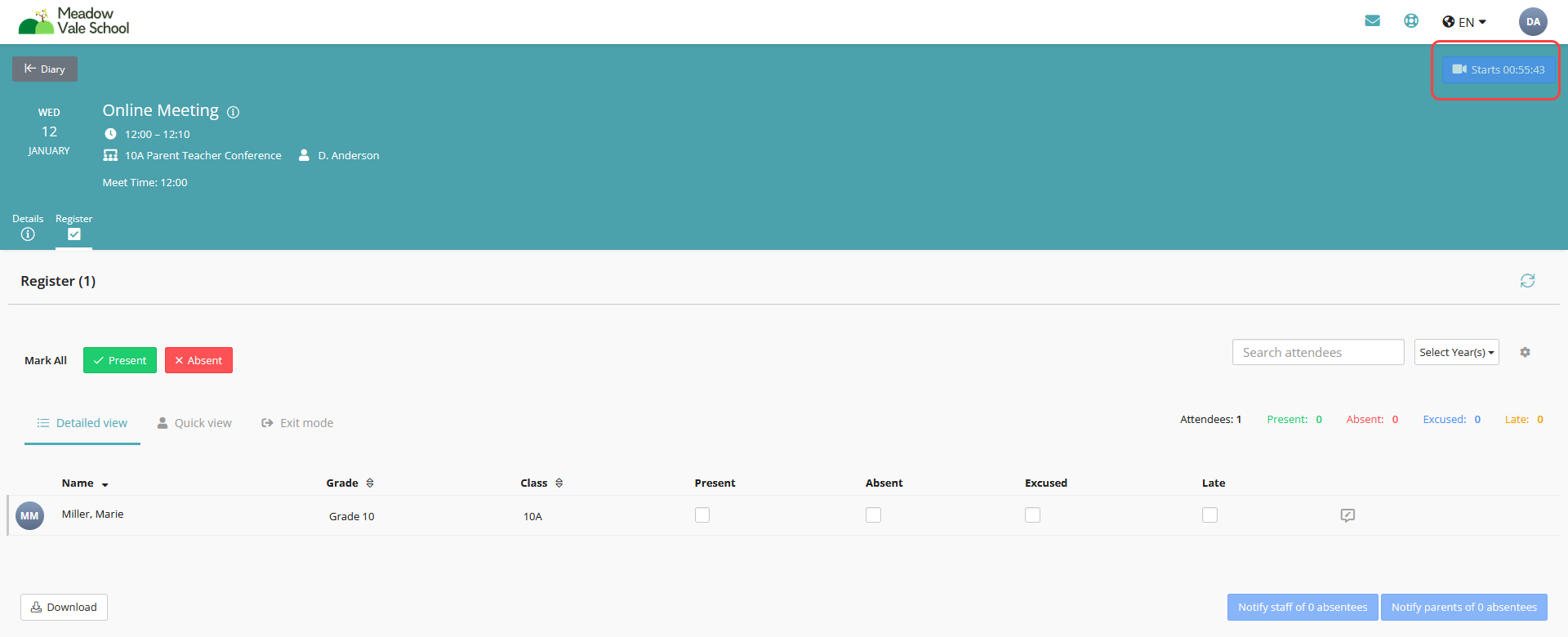
Once the current time is within an hour of the appointment, then this icon will change to a countdown timer starting at 59.59
For example
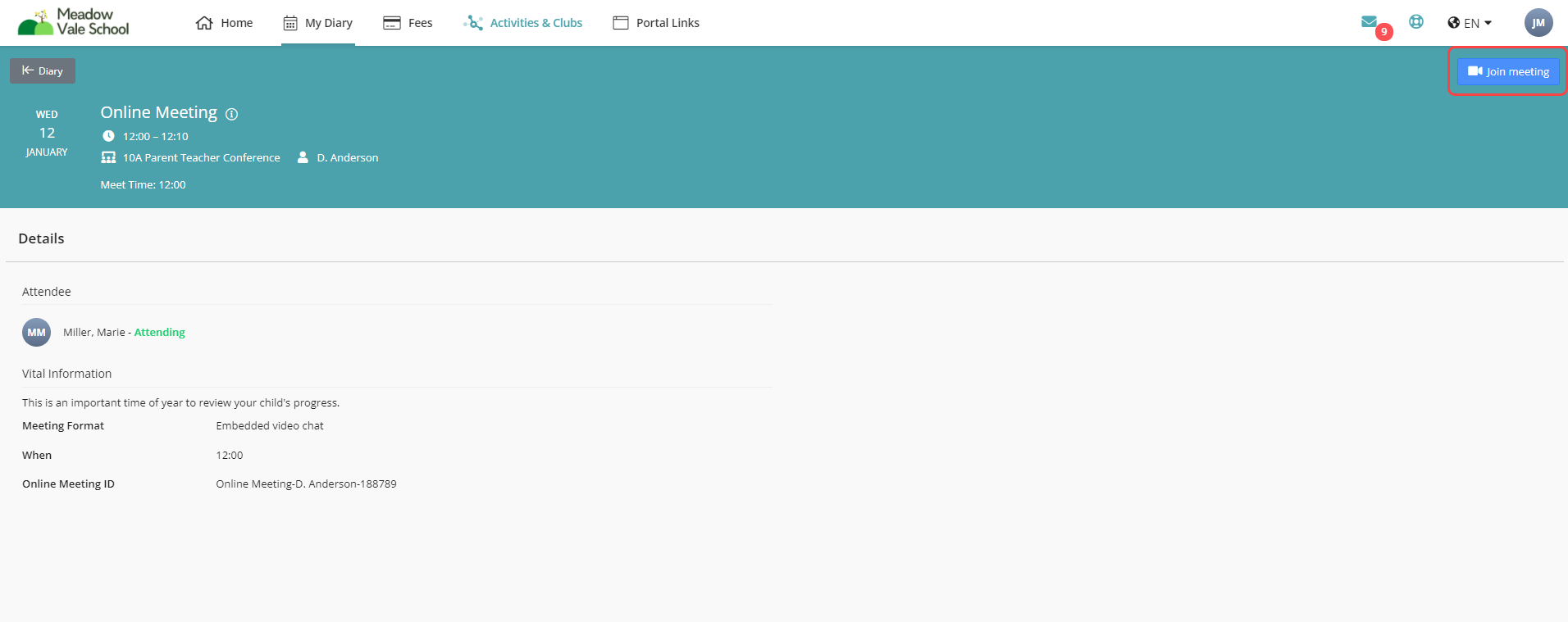
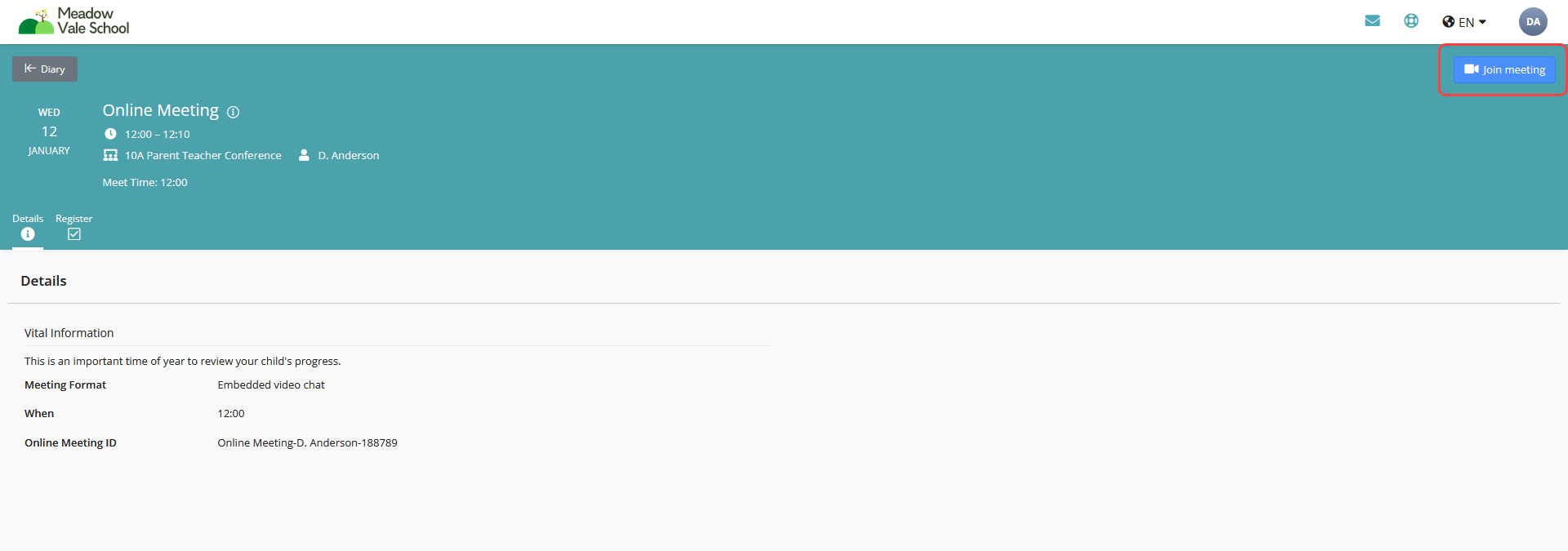
Once the time of the appointment has arrived, the parent and staff member can click on Join Meeting -
Please note you can only successfully join a meeting from the SchoolsBuddy interface. If the users has set up the link to another diary option such as Outlook or Google, they will need to log in to SchoolsBuddy to join the meetings.
Parent View
Staff View
When both the parent and staff click on the Join Meeting button, the interface will change to show the video screen of each person. For the parent view, the staff member will be in the middle of the screen with the parent in a smaller screen at the bottom left of the screen, and vice versa for staff view.
Parent view
Staff View
At the bottom of the screen are various buttons and a countdown timer showing how long is left for the meeting.
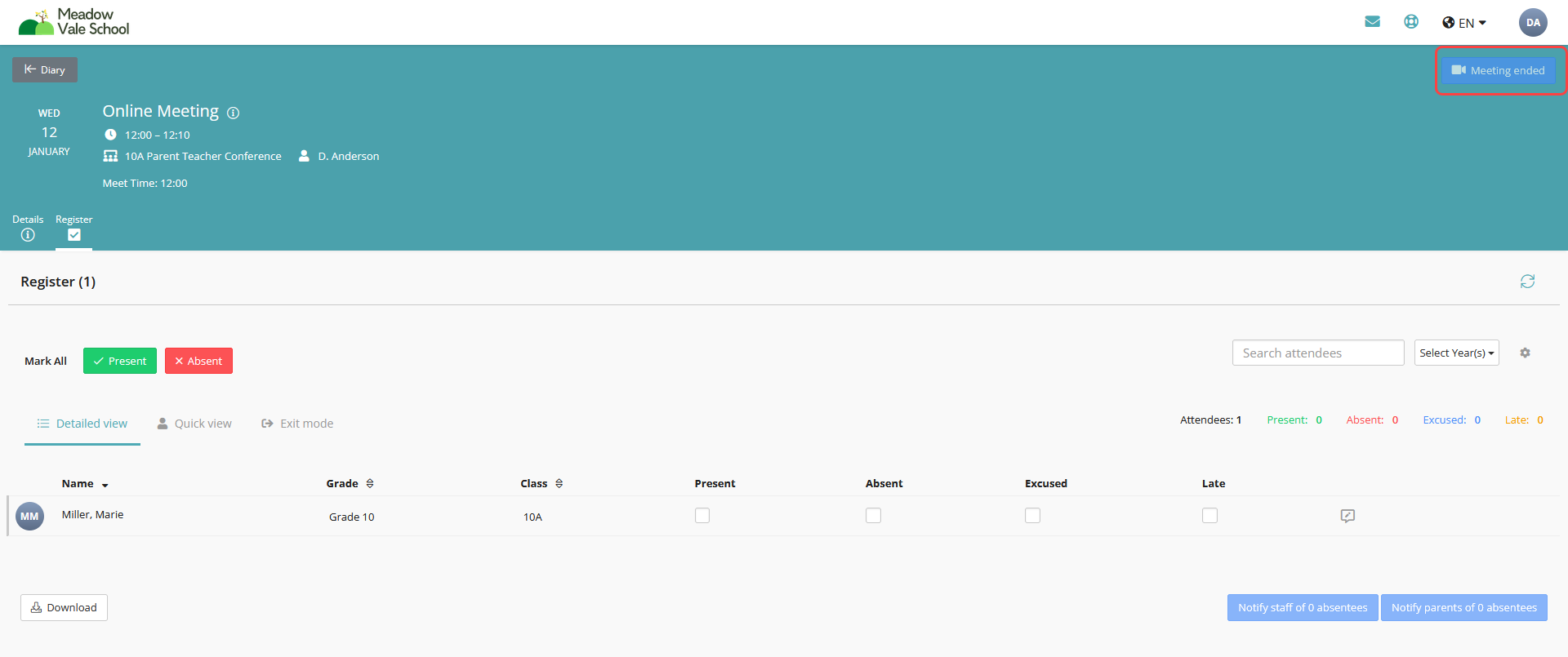
Once the timer counts down to zero, or the meeting is ended by the member of staff, then the screen will go back to the event, the button will change to Meeting ended and the member of staff can then take the register.
For further details read these articles:
Blocking out Parents Evening / Parent Conference time slots as an Admin
Blocking out Parents Evening / Parent Conference time slots - as a Teacher
Making a manual Parents Evening / Parent Conference booking
Handling breaks in your Parent Teacher Conference / Parents Evening